16
Blend Modes
The AI video editor from movcut.ai provides a pro timeline with layers, blend modes, animation with easing and export settings. Create something new or work with your own video.
16
Blend Modes
6
Animation Types
3
Aspect Ratios
Click Create and Edit to create a new one from scratch. Type in a prompt or choose one of the AI tools. Movcut.ai will automatically create video clips and add them to your timeline.
Start creatingIf you already have a video, just click on the Upload and Edit option. Simply upload a file from your device, and it will be added to the timeline.
Upload footageThe movcut.ai editor is based on a multi-track timeline. There is no clutter or hidden menu items.
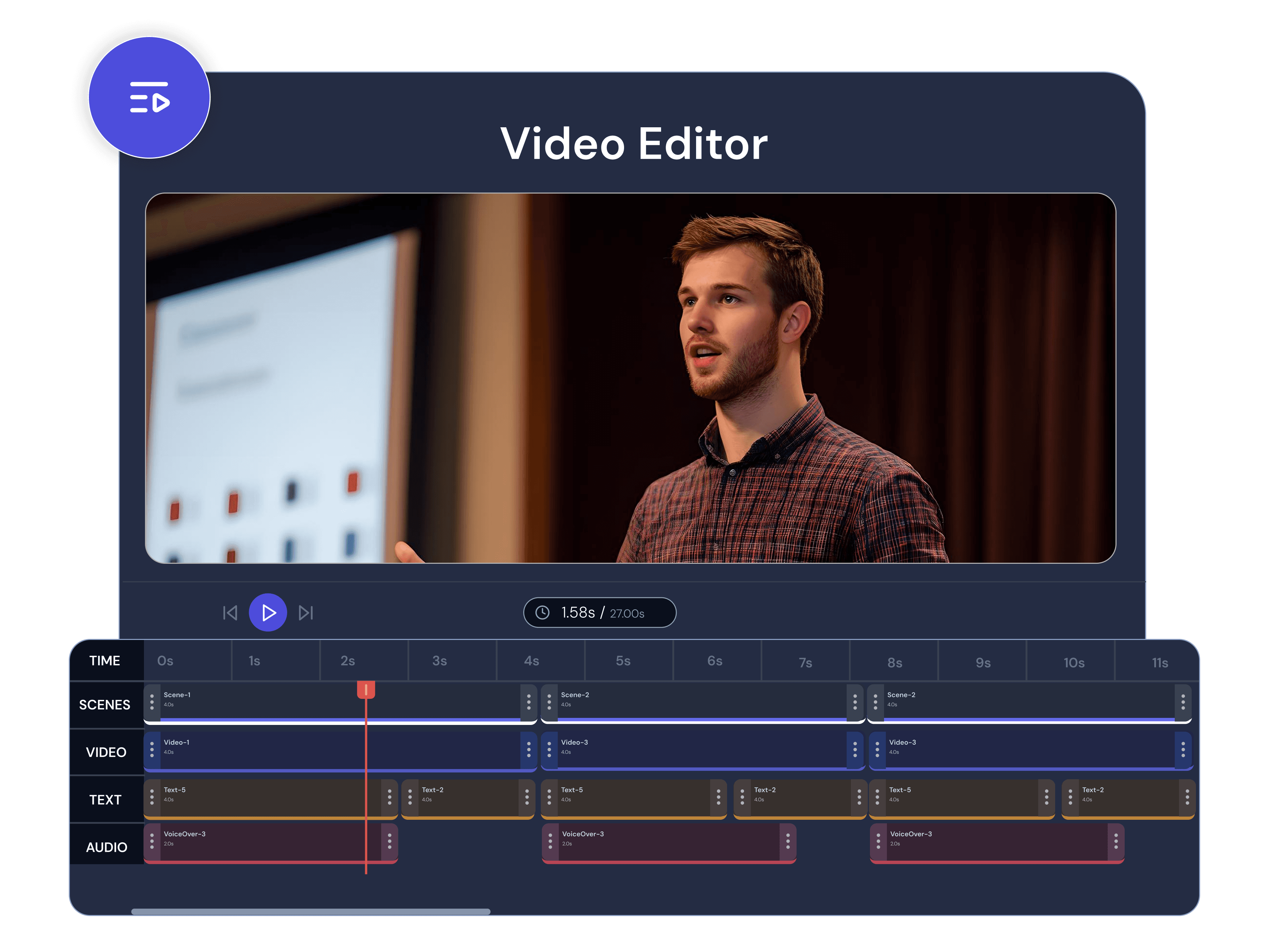
A time ruler-based timeline with your Scenes track and Video track displayed side by side. Each scene contains its own clips. You can scrub your project by dragging the playhead.
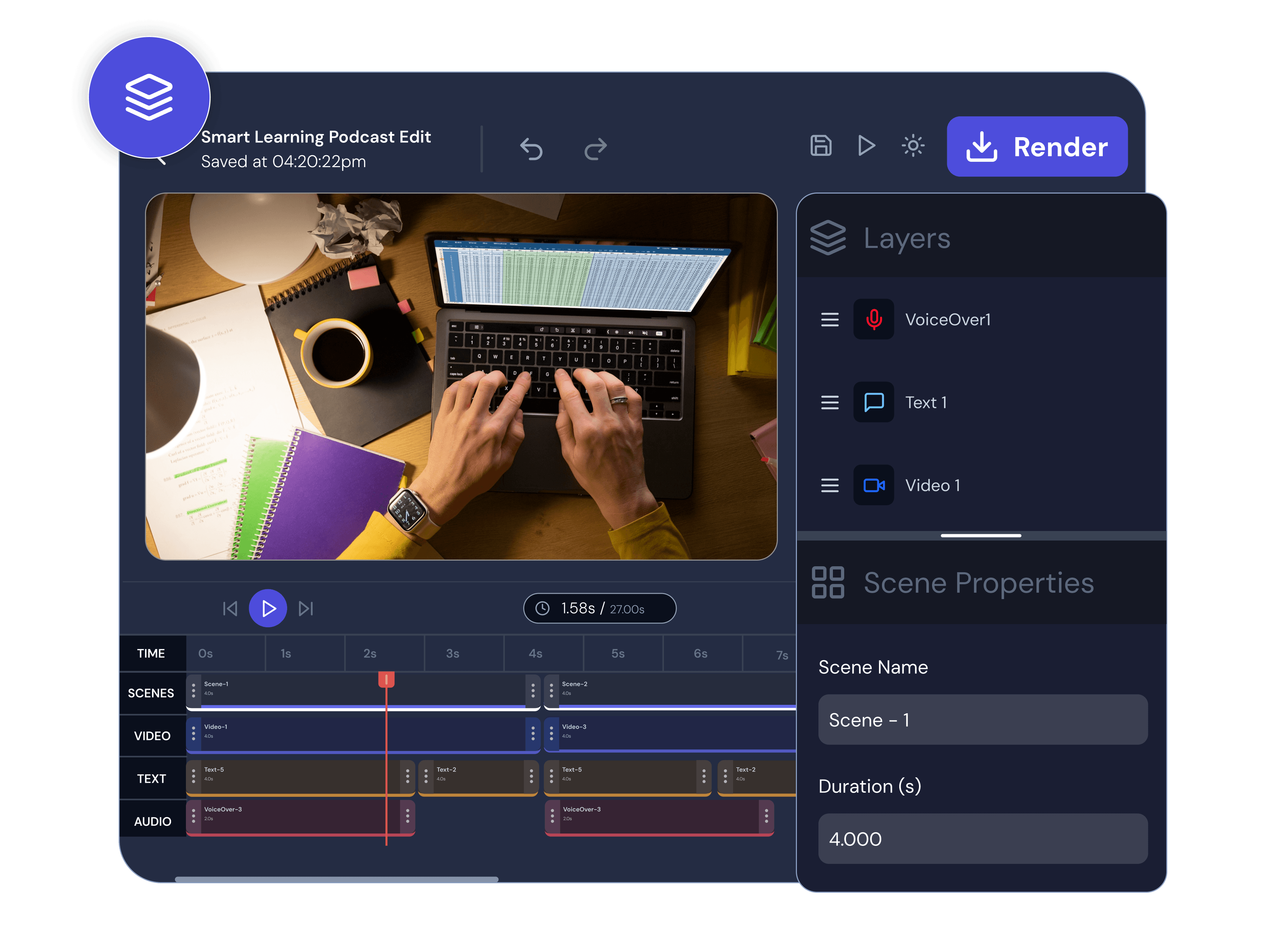
All the elements of the current scene are shown here. You can rearrange, hide, lock and delete layers independently.
This is the live preview area. You can see real-time updates of any element. Whatever element is selected/required, its properties such as transform, style, animation, blend mode and playback.
The timeline lets you see all your scenes and clips. Move clips to re-arrange them, drag their edges to cut or extend them, and duplicate clips into other scenes. Set individual scene lengths. Add multiple clips to a scene on multiple tracks. Use the playhead to scrub and preview at any point.
A scene can have multiple video layers. Move layers up, down, to the top or bottom in the panel. Turn visibility on and off to hide a layer. Lock any layer to prevent accidental changes. Layers are named (Video 1, Video 2, etc.) and re-orderable.
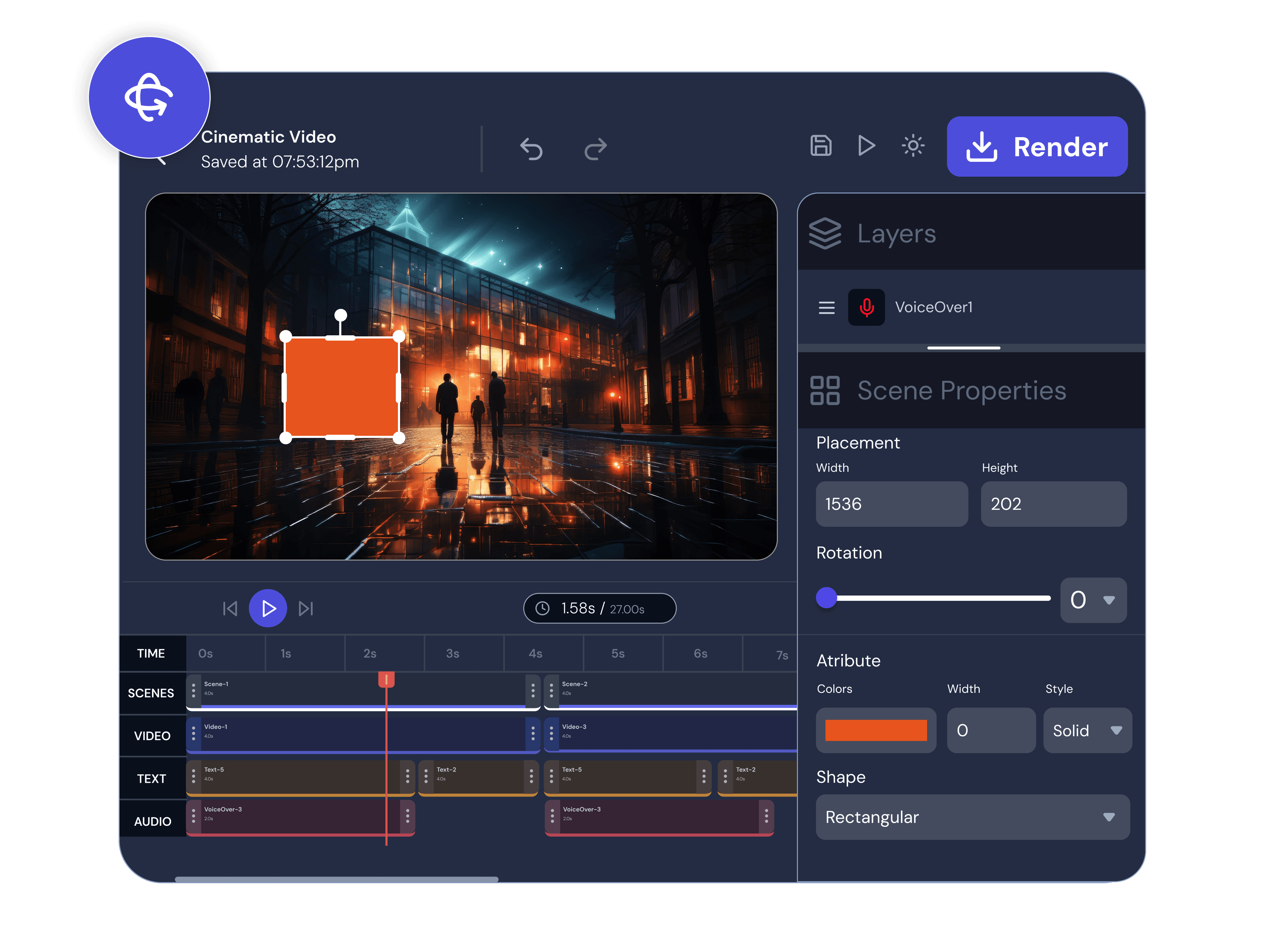
Scale by setting width and height in pixels. Rotate by degree. Crop to the perfect size. Move anything around, simply by dragging.
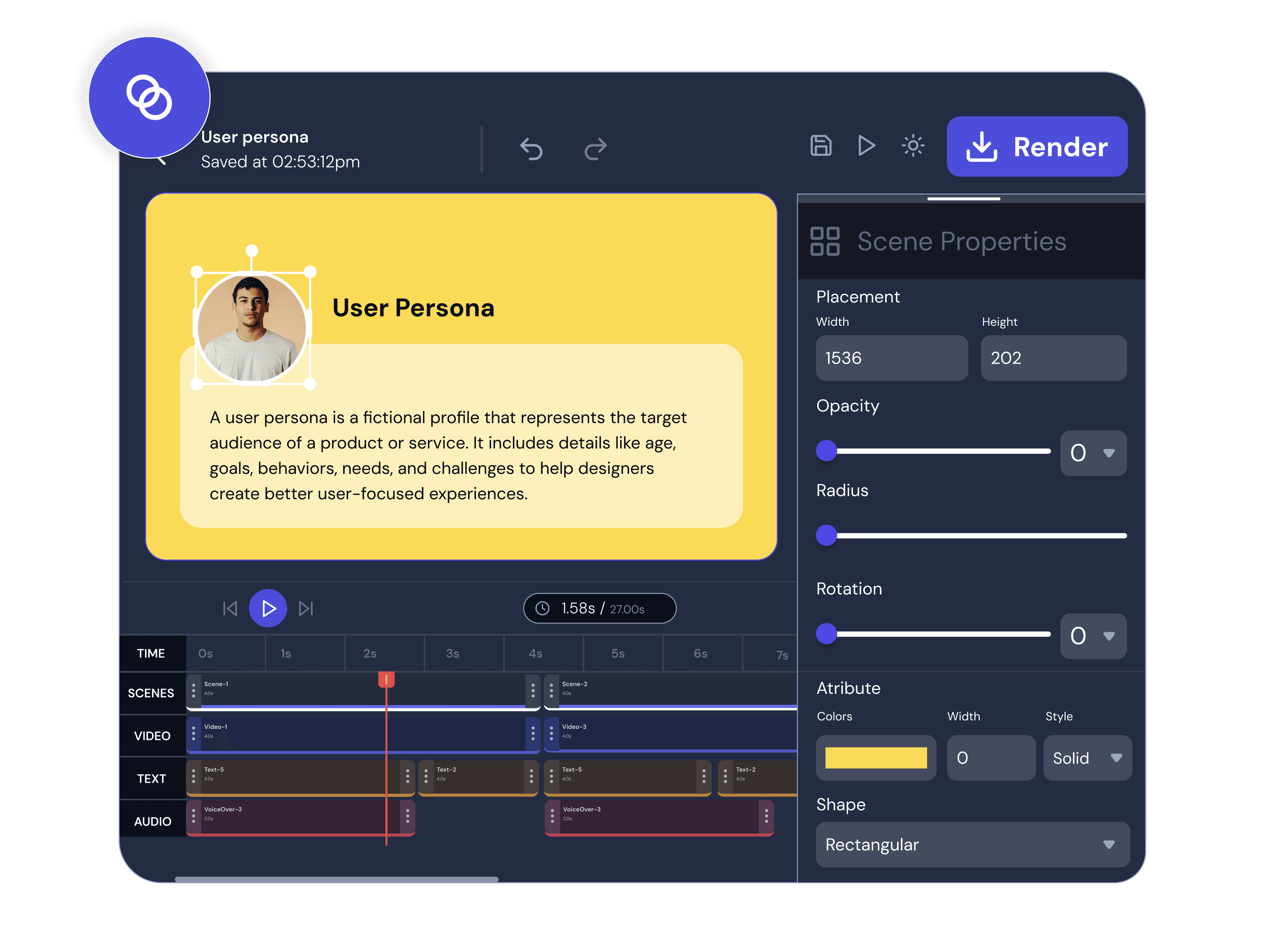
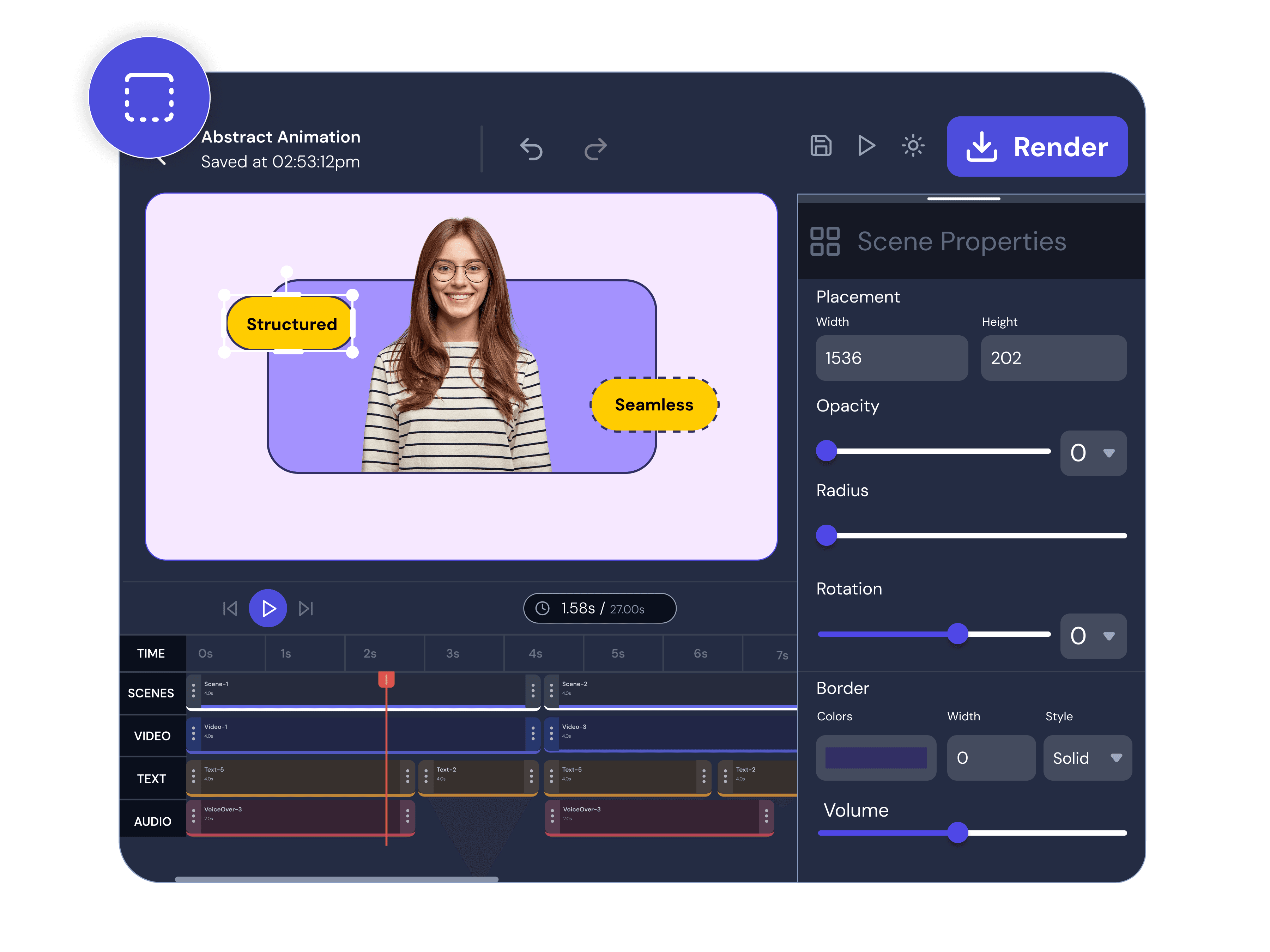
Manage opacity, blur and border radius per layer. All three are previewed in real time.
Movcut.ai offers 16 blend modes - per layer, live preview, and able to be combined with opacity to achieve desired compositing effects.
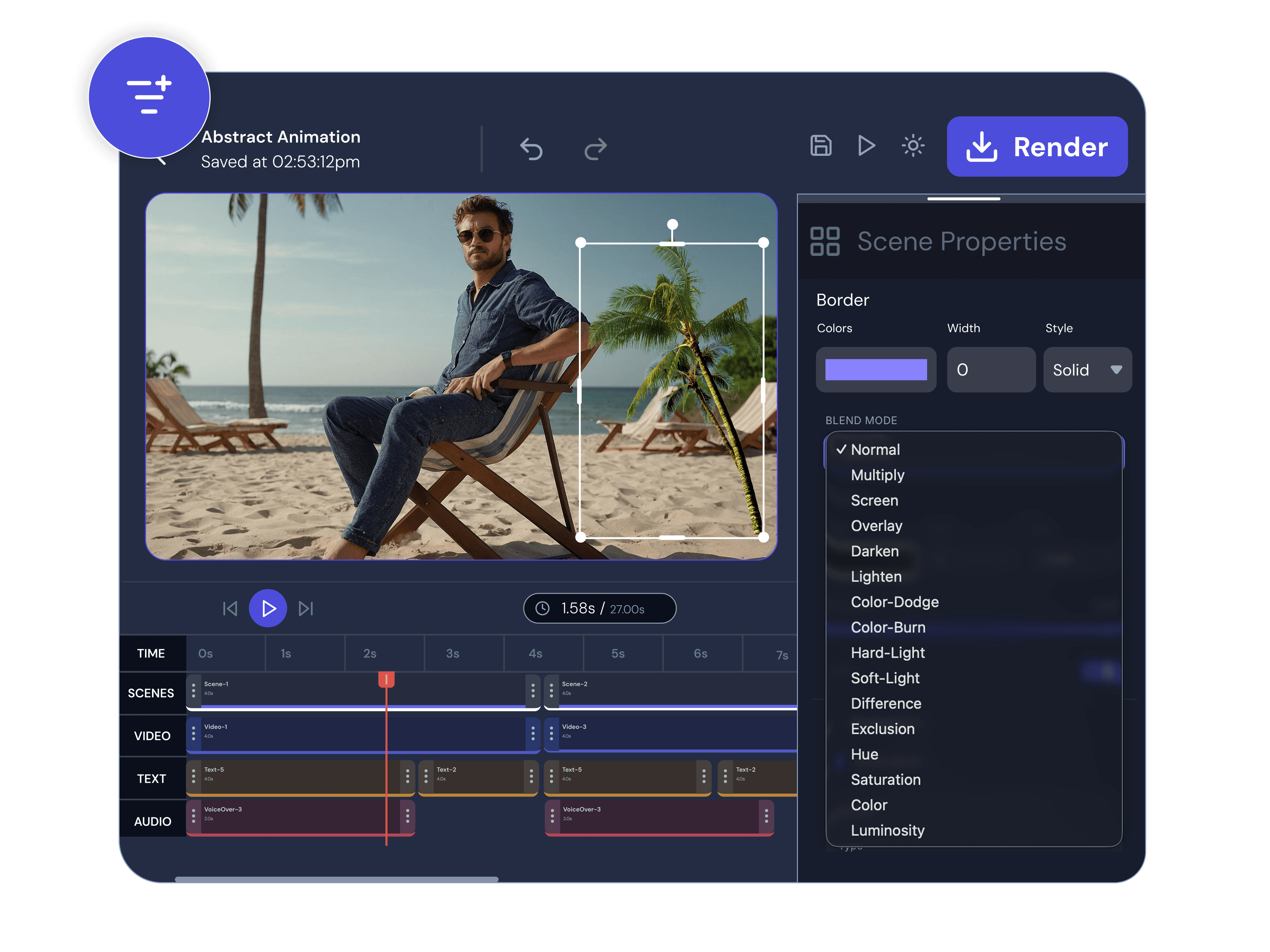
Apply a border to any video element using a colour, width (in pixels) and border style - Solid, Dashed, or Dotted. Use a width of 0 to remove the border. Use with border radius for rounded borders.
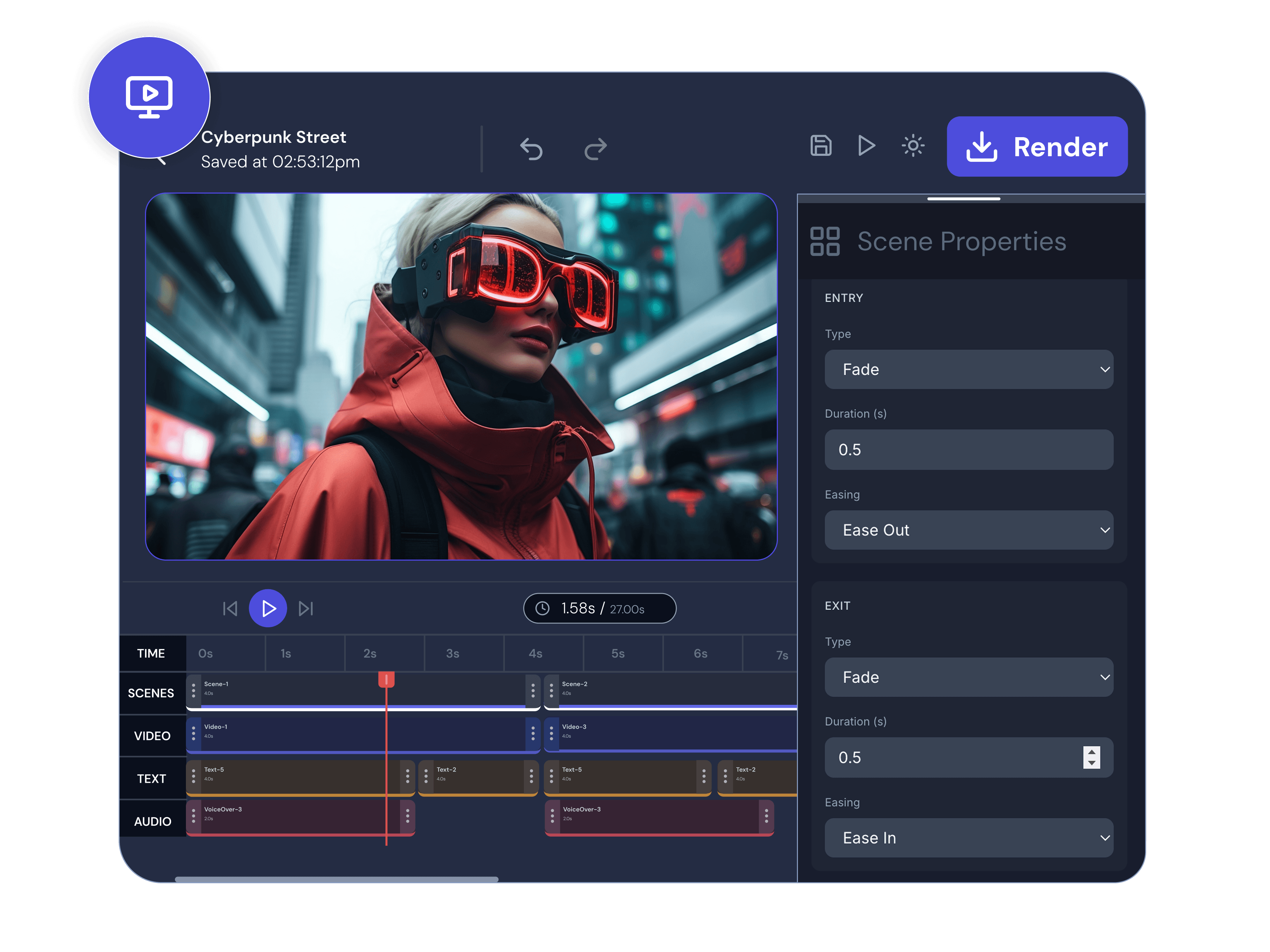
Animate the appearance, departure or both of any video element. There are seven options to choose from for each: None, Fade, Slide, Scale, Zoom, Rotate, Blur. Specify the duration in seconds. Set the ease curve to affect the animation - Linear, Ease, Ease In, Ease Out, Ease In Out.
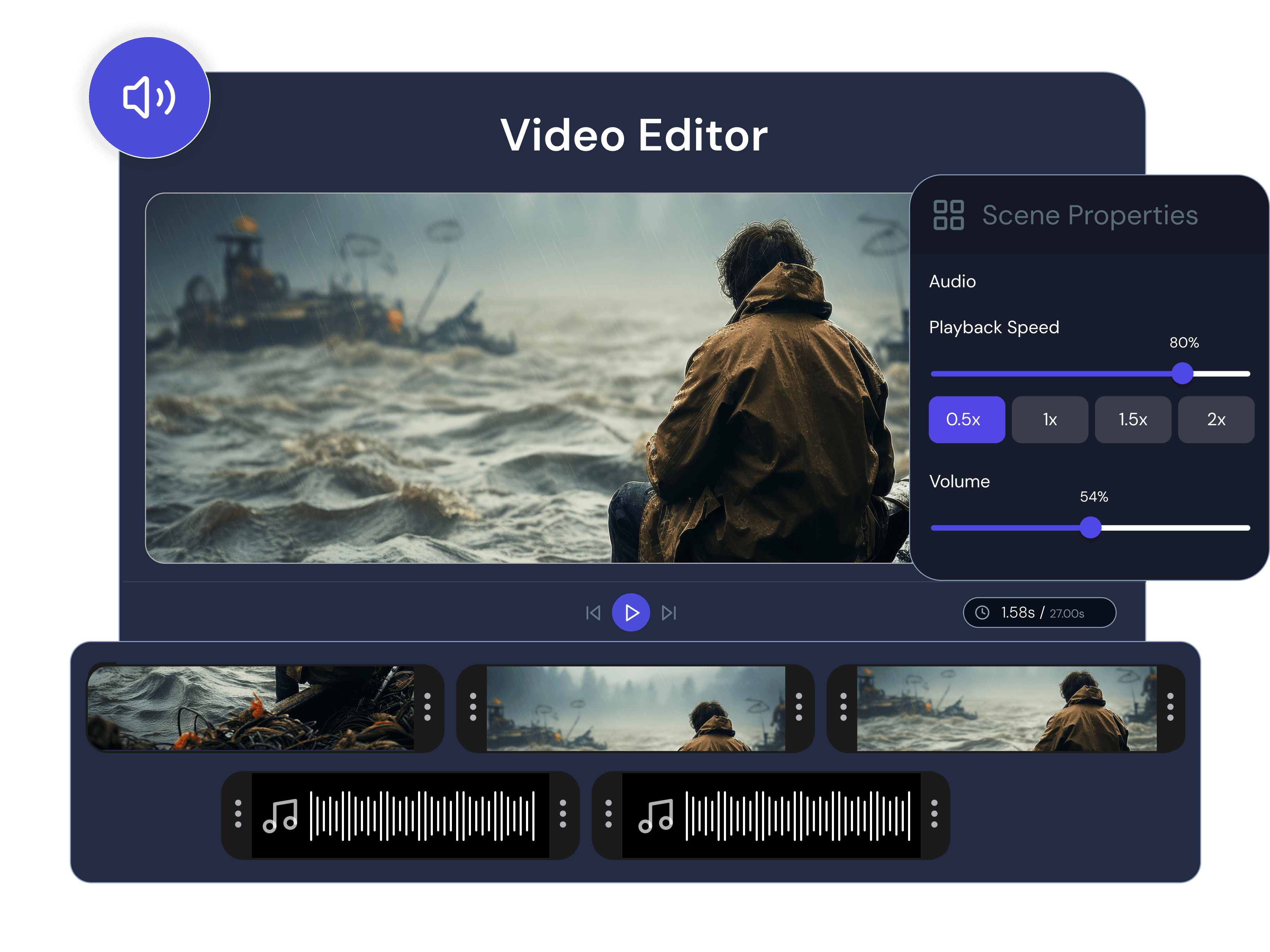
Volume and looping is per clip. Set the volume of each clip with the volume bar. Turn looping on/off to determine if a clip is repeated.
The right format for every platform. Movcut.ai's editor offers three default aspect ratios, which can be set from the canvas controls.

Landscape

Portrait

Square

Social media managers and strategists use our online tool to Import video, change the aspect ratio to 9:16 and trim on the timeline. Cut scenes, add scene transitions and export for TikTok, Instagram Reels, or YouTube Shorts.

In marketing and advertising, industry experts import video, cut clips in the timeline, rearrange scenes, add entrance and exit animations. And then export for TikTok, Instagram Reels, or YouTube Shorts.
Educational and training content creators organise content into multiple scenes, edit and arrange clips for their delivery platform, and export for YouTube or LMS platforms.
Add several images of a product, each on their own layer. Leverage transform controls for positioning, border styling for framing, and the loop feature for continuous clip playback.

The text to video generator by movcut.ai automatically inserts clips into the editor as timeline clips. Trim, layer and add entry and exit animations, all from within the platform.
Add or upload your videos, and build them on the timeline with several scenes. Edit the length of your video, move the video clips around, set the volume for each clip, loop if necessary, and export your video.
Click Create and Edit, then type in a prompt or click the AI option of your choice.
movcut.ai creates your video clips and adds them to the timeline.
Edit - cut, stack, animate, apply any property in the editor.
Export in your chosen aspect ratio.
Click Upload and Edit and choose your video from your computer.
It will appear in the timeline for you to edit.
Edit - cut, split, stack, animate and set properties with any tool in the editor.
Export in your chosen aspect ratio.
Professional video editing tools meet AI-powered speed. No other browser-based editor provides this level of granular control with zero installation.
16
Blend Modes
6
Animation Types
3
Aspect Ratios
99.9%
Uptime
Layer compositing with 16 named blend modes - per layer, with opacity, and rendered live on the canvas.
A total of six entry and exit animations, with duration, and five easing curves. Other tools have a maximum of a fade on text.
Hide, show, lock and re-order layers (in four directions) in all scenes. Multiple layer stacking with individual layer controls. Not available in any competitor.
A single editor that supports both use cases - create using AI then edit, or upload and edit. No other product offers this.
Height, width, and rotate by degree, and crop. All three confirmed and available. Most others list crops.
Advanced editing tools on the web. No installation, no setup. No limits on use, compatibility.
Layer control. 16 blend modes. Professional animations. Timeline editing. Free to start — no credit card required.